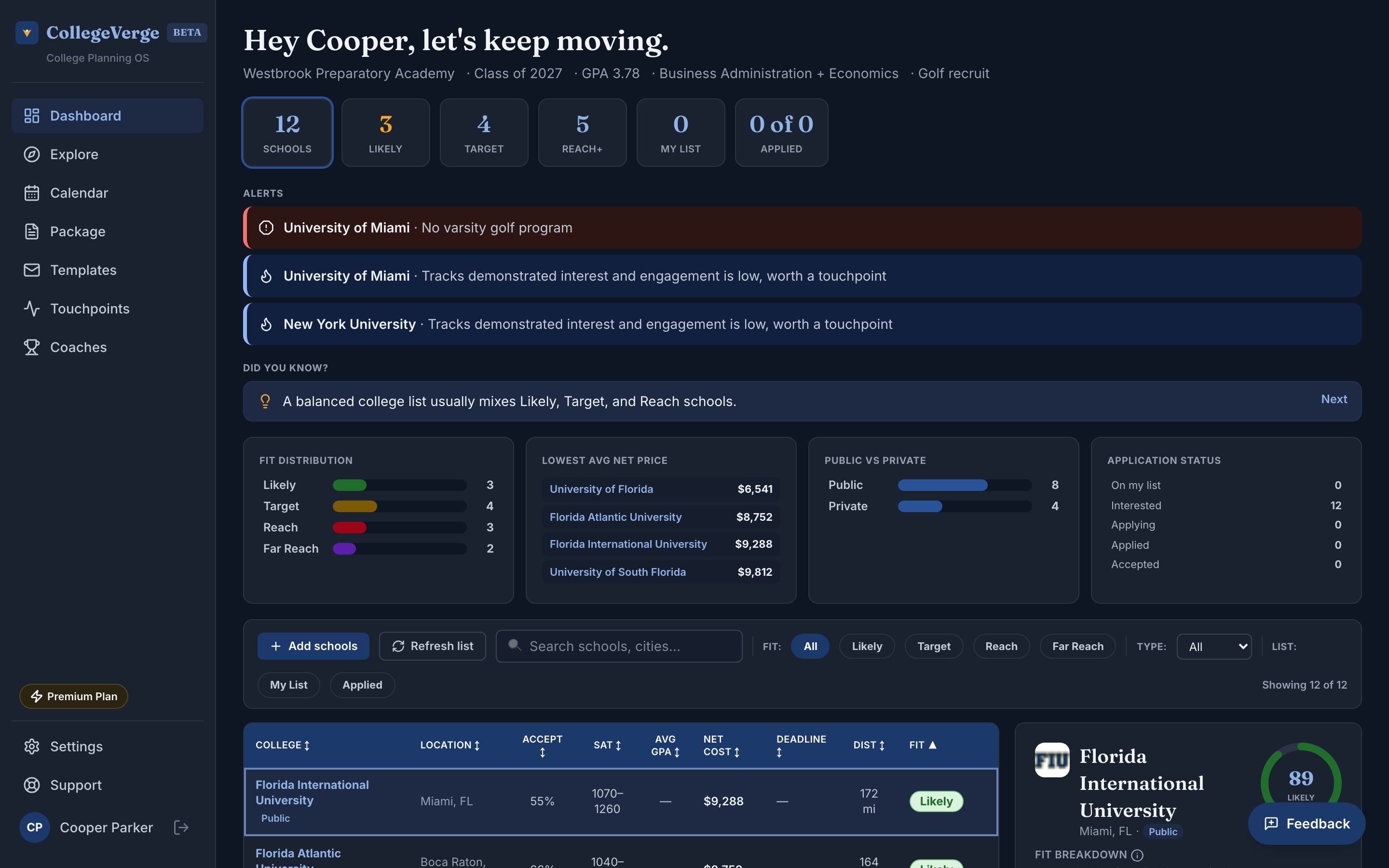
Dashboard
The Dashboard is your home base. It shows every school you are tracking, how well you fit, where each application stands, and what is due next. Most days, this is the only screen you need to open.
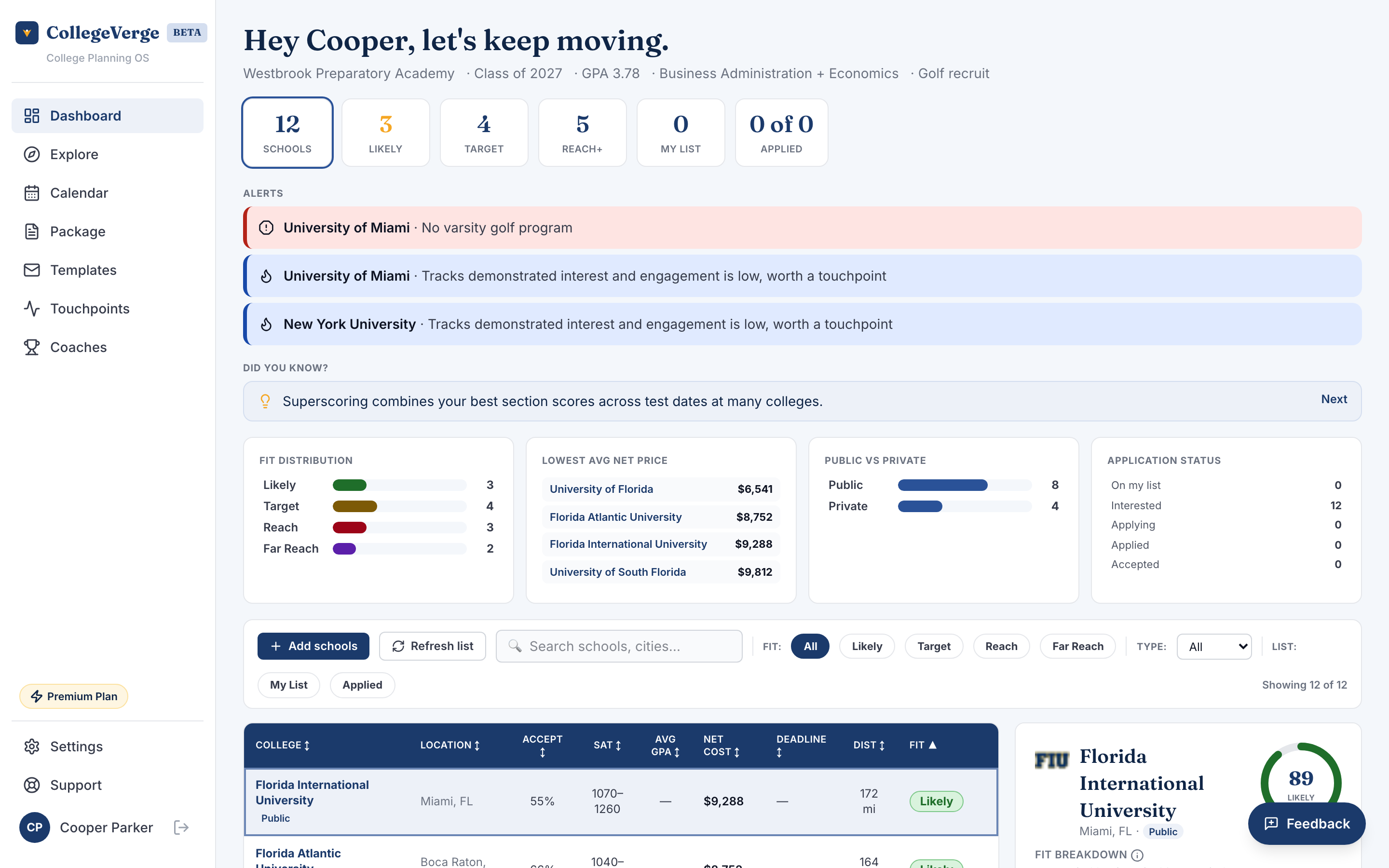
Your school list
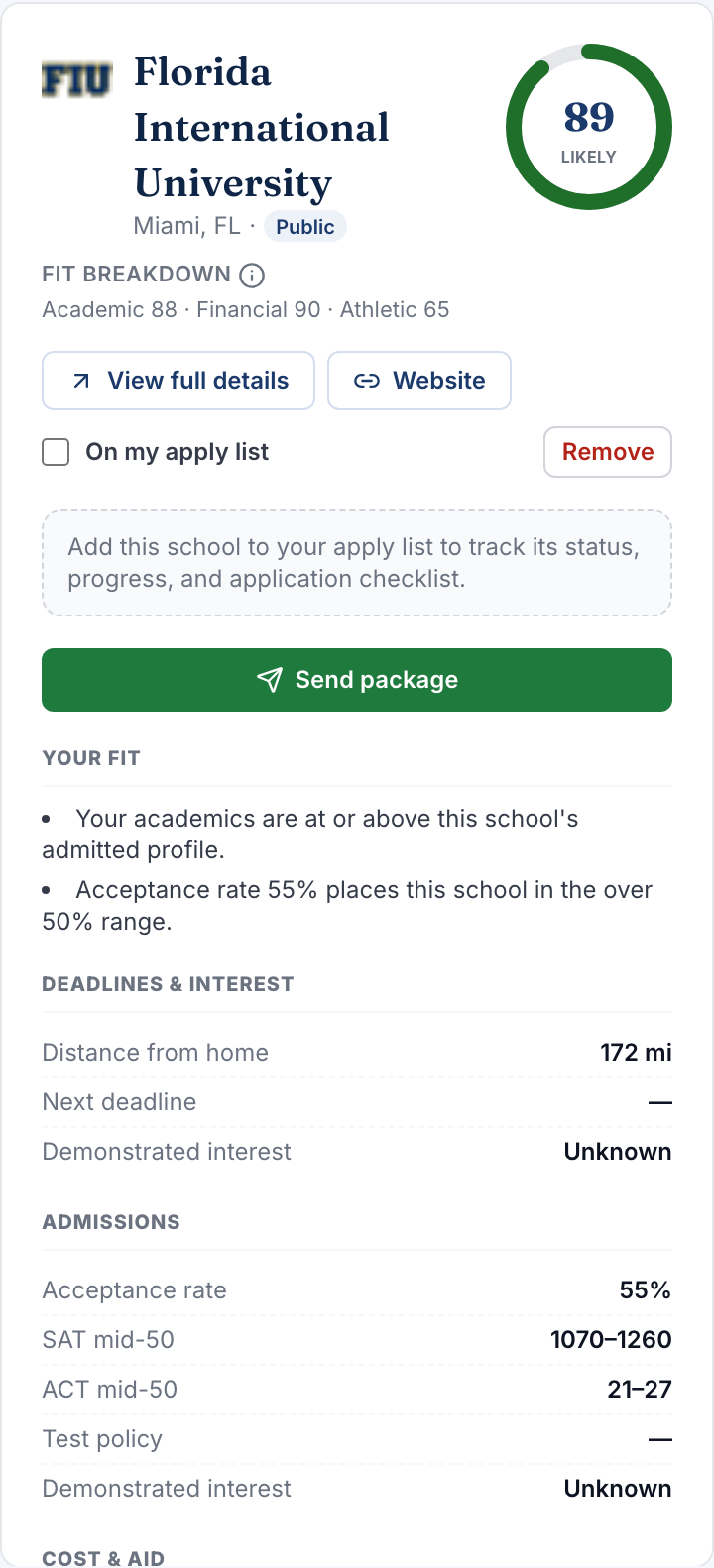
Each row is a school on your list. The table is sortable, so click any column header to reorder by name, location, acceptance rate, SAT, GPA, net price, distance from home, deadline, or fit. Click a school name to open its full detail panel with admissions data, costs, deadlines, and your application checklist.
The detail panel also surfaces a few things worth knowing before you apply. If a school is strong in one of your intended majors, the panel highlights it. It links out to the school's own net price calculator so you can refine the cost estimate with your real numbers. And if you are a recruited athlete, an Athletics section shows whether the school sponsors your sport and at what level (NCAA Division I, II, or III, or NAIA), with a link to the Athletics directory.
Fit categories
Every school gets a fit badge. The badge is student relative: it reads your academics against both that school's admitted profile and how selective the school is, so the same school can be a Target for one applicant and a Far reach for another. Use the badges to balance your list, not to rule schools in or out.
| Badge | Meaning | How many to keep |
|---|---|---|
| Likely | At or above the admitted profile | A few safe anchors |
| Target | Solidly in range | The bulk of your list |
| Reach | Below the typical profile, still possible | A handful |
| Far reach | A long shot on the numbers | One or two at most |
For how the badge is calculated, including the academic blend, the selectivity tiers, the in-state public boost, and the 0–100 fit score ring, read Understanding fit.
Admissions is unpredictable at the top. A list weighted toward Target schools with a couple of Likelies protects you better than a pile of Far reaches.
The basic fit badge is on every plan. Plain language scoring explanations are on Standard, and AI written rationale that walks through the why is on Premium.
Application status
Set a status on each school so the Dashboard reflects reality. Statuses run from interested and researching through applying, applied, and the outcomes: accepted, waitlisted, denied, enrolled, or withdrawn. Keeping these current is what makes the rest of the app useful, since deadlines, reminders, and your package all read from them.
Deadlines and urgency
Upcoming deadlines surface right on the Dashboard. Anything due within 14 days is flagged in red so it does not sneak up on you. Deadlines are read only on every plan. Deadline reminders by email are on Standard.
Demonstrated interest signals
Some schools track how much interest you show before they admit you. When a school cares about demonstrated interest and you have not contacted them recently, the Dashboard flags it so you know to reach out. The full tracker lives in Touchpoints.
The application checklist
Open any school to find a per school checklist: transcript requested, transcript sent, supplemental essays done, FAFSA submitted, CSS Profile submitted, and portal set up. Check items off as you go and the school's progress updates everywhere.
Refresh your list
When your grades, scores, budget, or preferences change, use Refresh list to rebuild your recommendations from your current profile. It is available on the Dashboard and in Settings. Refreshing keeps any school you have pinned, marked as applying, or already worked on, so you never lose the schools you care about while the rest of the list updates around them.
Empty state
If you have not added any schools yet, the Dashboard shows a prompt to build your starter list. That kicks off the same onboarding flow described in Getting started.
Dark mode
Prefer a darker screen? CollegeVerge fully supports dark mode. Switch between light, dark, and system in Settings, under Appearance.