Settings and billing
Settings is where you keep your profile accurate, link a parent, and manage your plan. Because your profile feeds your fit scores, resume, and templates, it pays to keep it current.
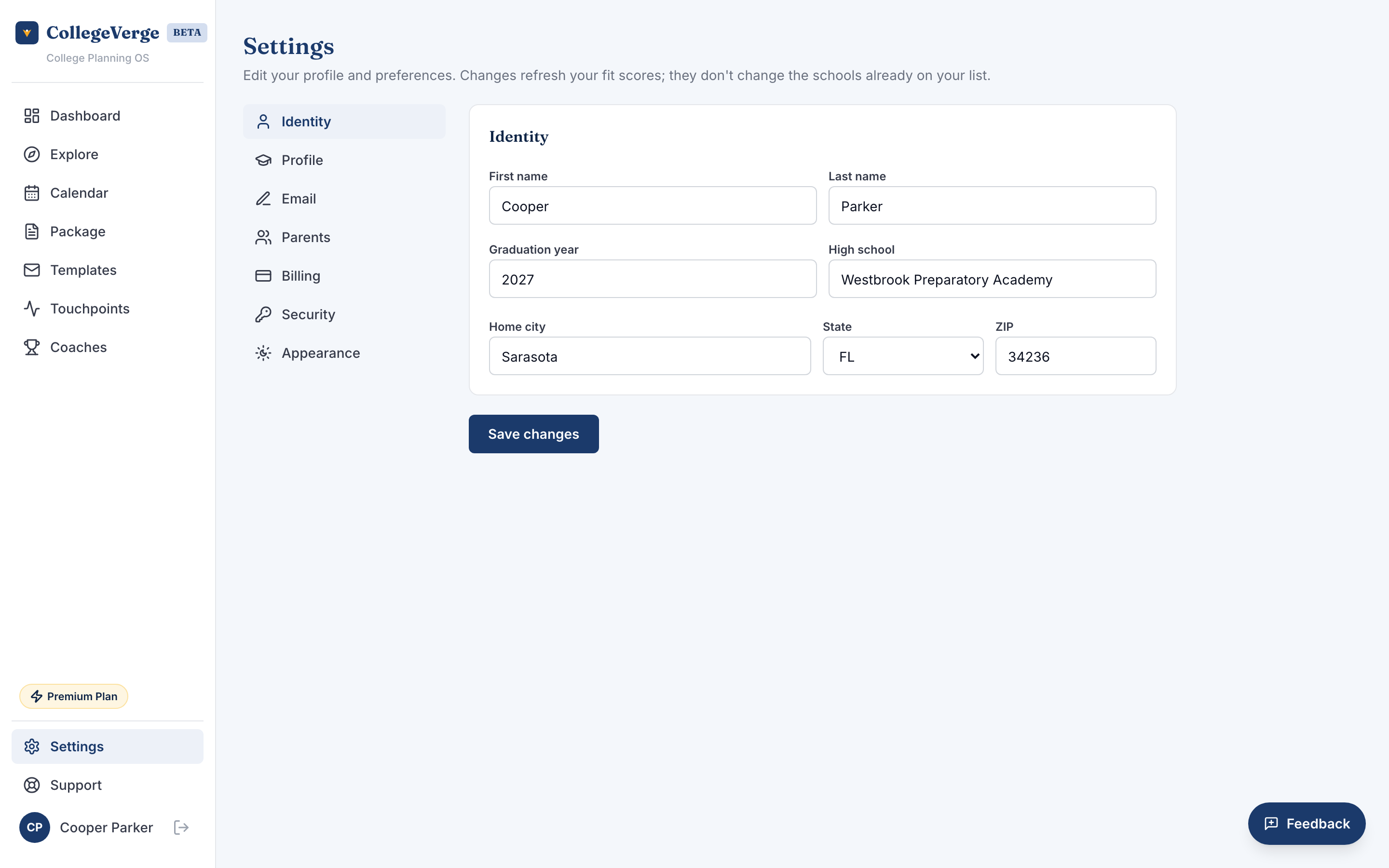
Profile and preferences
Edit your name, graduation year, high school, GPA, test scores, AP, IB, and Honors counts, intended majors, and email signature. The intended-majors field takes a comma-separated list, so you can add every major you are weighing, and Undecided is a valid choice if you are still deciding. Update your preferences too: regions, distance from home, school size, setting, budget, and public or private. Save your changes and your fit scores recalculate for the schools already on your list.
If you want fresh recommendations rather than just updated fit, use Refresh list. It rebuilds your recommendation slots from your current profile, your grades, scores, budget, and preferences, and shows the same Likely, Target, Reach, and Far reach summary you saw at the end of onboarding. It keeps the schools you are already working on: anything you pinned, marked as applying, moved past Interested, or logged activity on stays put.
Athletics
If you are a recruited athlete, keep your sport, position, division targets, and stats summary up to date here. The Athletics directory filters on these fields, so accuracy matters.
Family and parent access
You can invite a parent or guardian to your account. They get their own read only view and a weekly digest of your progress, without being able to change your work.
- 1InviteAdd your parent's email in the Family section and send the invite.
- 2They confirmYour parent gets an email with a link. When they confirm, their access turns on.
- 3Manage anytimeRemove a parent or invite another whenever you need to.
For students under 18, a parent link also handles the approval that unlocks sending emails and sharing your package. For everyone, it keeps the people helping you in the loop. The parent portal and weekly digest are on Standard. To show a parent what their view looks like, send them the For parents guide.
Billing and plans
Your current plan and renewal date show in the Billing section. Use Manage billing to open the secure billing portal, where you can update your payment method, view invoices, or cancel. To compare plans or upgrade, visit the Plans page.
Upgrades take effect right away and your new limits and features unlock within seconds. If you downgrade or cancel, you keep access through the end of your current period.
Appearance
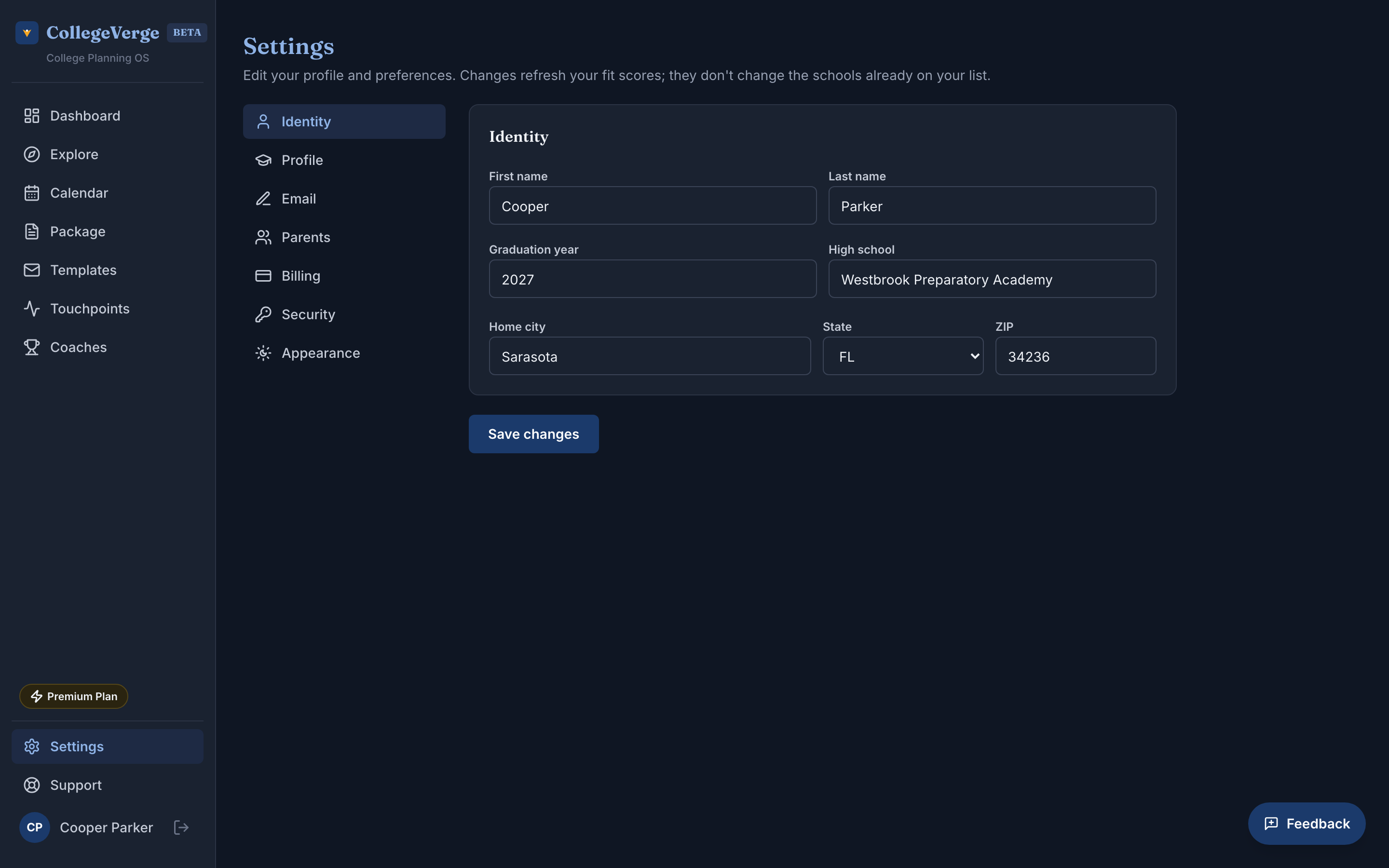
Under Appearance you can switch between light, dark, and system themes. System follows your device setting automatically. Your choice is remembered the next time you sign in.
Consent status
If you are a minor, Settings shows your parental approval status, including the parent email and the date approval was granted once it is in place.