Explore
Explore is how you find and add schools. It searches the full college database, filters out schools already on your list, and lets you sort by what matters to you before you add anything.
Search and filter
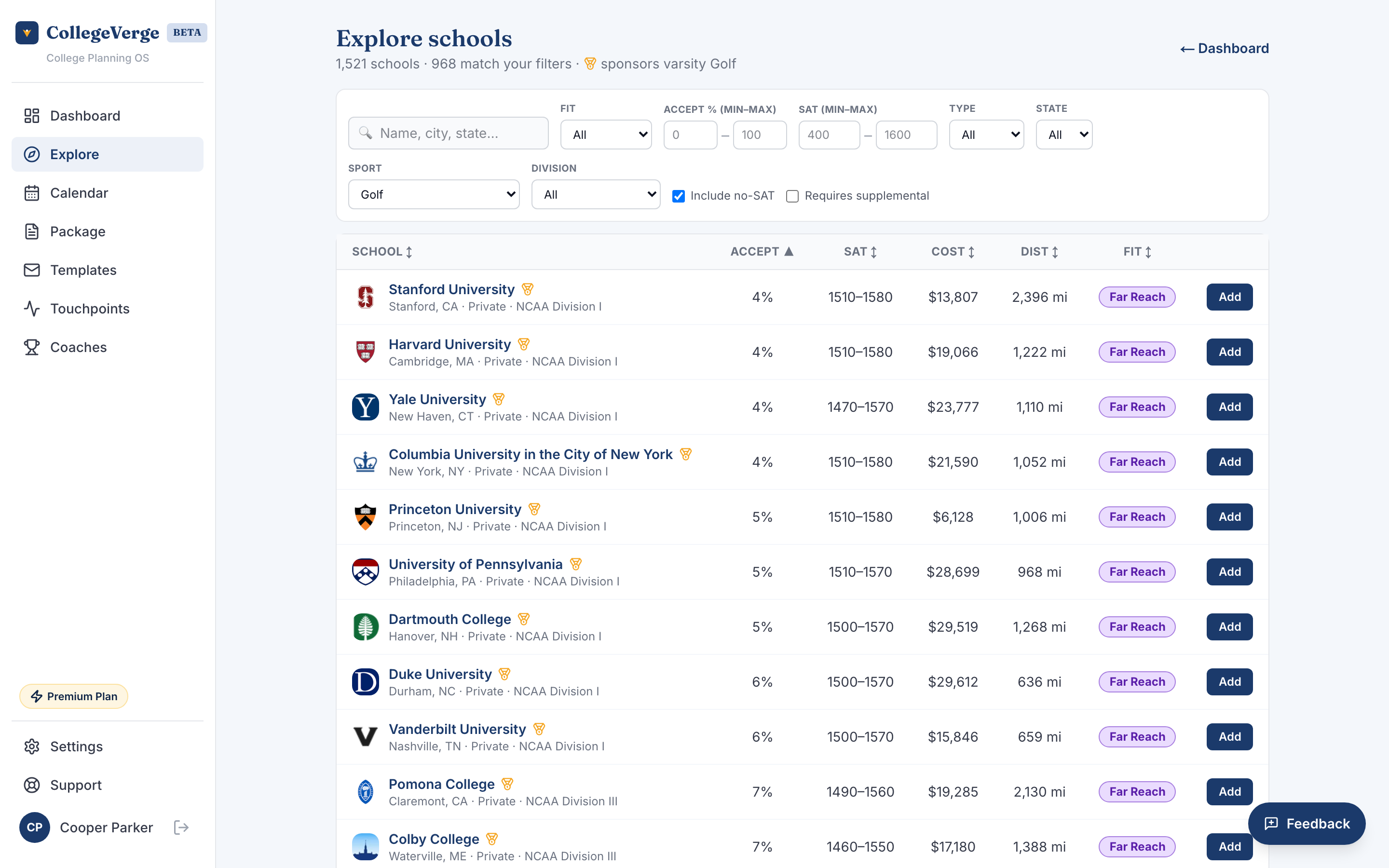
Start with the search bar to find a school by name, city, or state. Then narrow the results with the filters:
- Fit: limit to Likely, Target, Reach, or Far reach.
- Public or private.
- State.
- Acceptance rate, as a minimum and maximum range.
- SAT range.
- Test optional only.
- Supplemental essay required only.
- Sport, for Premium athletes. It starts on your own sport and limits the results to schools that sponsor it.
- Division, for Premium athletes. Narrow to a level such as NCAA Division I, II, or III, or NAIA.
If you are a Premium athlete, schools that sponsor your sport carry a gold medal marker, with the school's level shown under its name, so you can spot a recruiting fit at a glance.
Sort the results
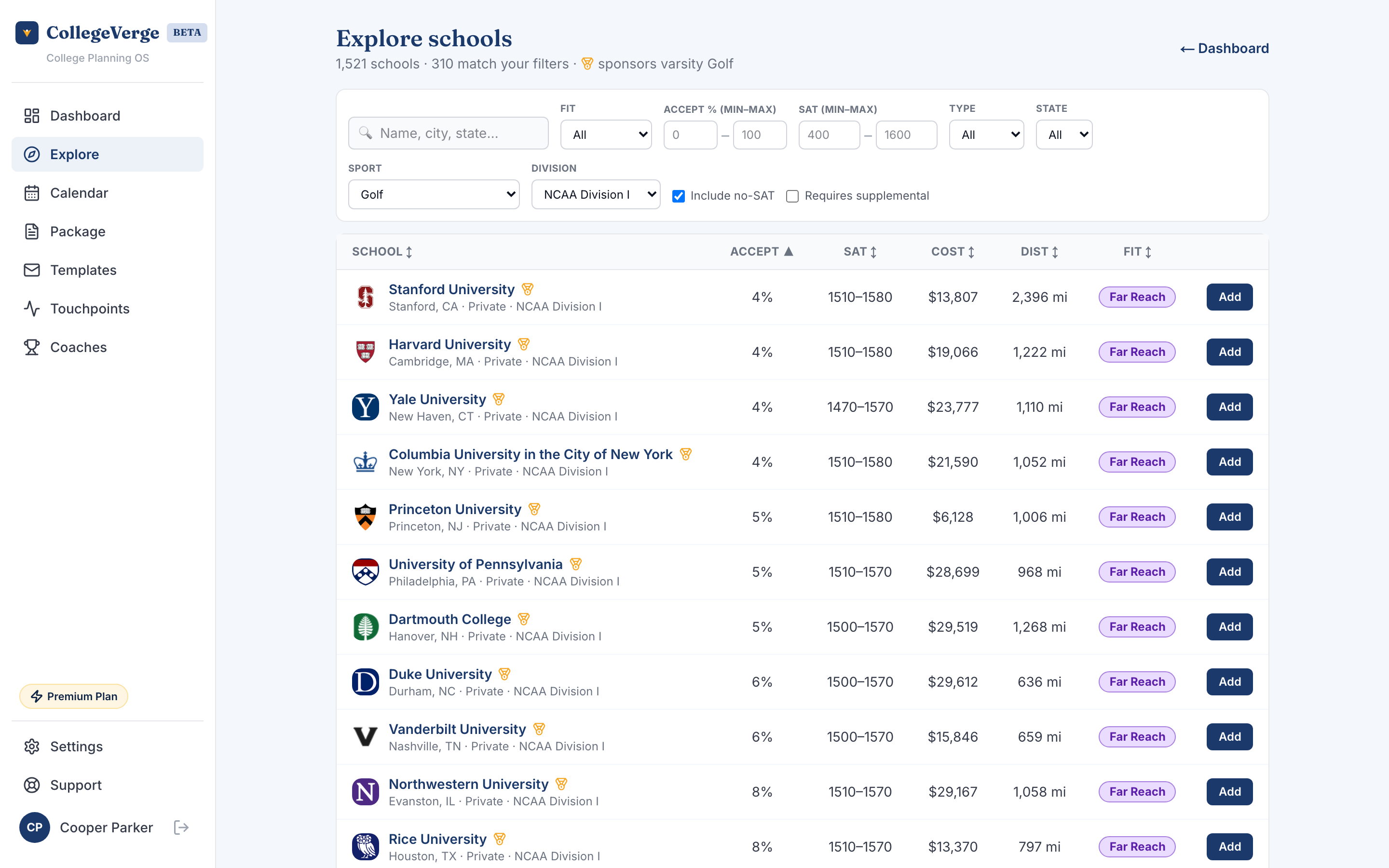
Every column is sortable. Click a header to order by acceptance rate, SAT, net cost, distance from home, or fit. An arrow shows the active sort direction. Use the page size control to show 25, 50, 75, or 100 schools at a time.
Add a school
Click Add on any row to put that school on your list. It appears on your Dashboard immediately with a fit badge, ready for you to set a status.
School limits by plan
The number of schools you can actively track depends on your plan.
| Plan | School limit |
|---|---|
| Free | 5 |
| Standard | 12 |
| Premium | 25 |
When you reach your limit, the Add button is disabled and a banner shows how many of your slots are used. You can remove a school from your Dashboard to free up a slot, or raise your limit on the Plans page.
A focused list is easier to act on. The limits are sized so Free covers a first pass, Standard fits a typical full list, and Premium leaves room for athletes casting a wider net.
Empty state
If no schools match your filters, Explore tells you so. Loosen a filter or two, especially acceptance rate and SAT range, to widen the results.