The parent portal
The parent portal gives you a clear, read-only window into your student's college application. You see the same schools, deadlines, resume, and progress they do, organized into a single overview, and you receive a short digest each week. You can follow along closely without ever editing their work. The portal is on Standard.
Everything in the parent portal is a view. You cannot add a school, change a status, or alter the resume. The work stays your student's; the portal keeps you informed and, for students under 18, lets you grant the one approval that unlocks their outreach.
How you get access
Your student invites you. The link starts on their side, not yours.
- 1Your student sends an inviteFrom the Family section of their Settings, your student enters your email address and sends the invitation. You receive an email letting you know.
- 2You sign in with that emailOpen CollegeVerge and sign in, or create an account, using the same email address your student invited. There is no separate code to enter.
- 3You acceptIf you already have an account, a banner appears asking you to accept the invitation; accepting switches your account to a read-only parent view. A brand-new account created with the invited email is linked for you on signup.
An existing account is never converted to a parent account behind your back. You opt in by accepting, and you only ever see students who have invited the exact email you signed in with.
Your dashboard
The dashboard is the heart of the portal. A banner at the top reminds you that you are viewing your student's account in read-only mode and that the weekly digest arrives every Sunday evening. Below it, the page gathers the parts of the application that matter most.
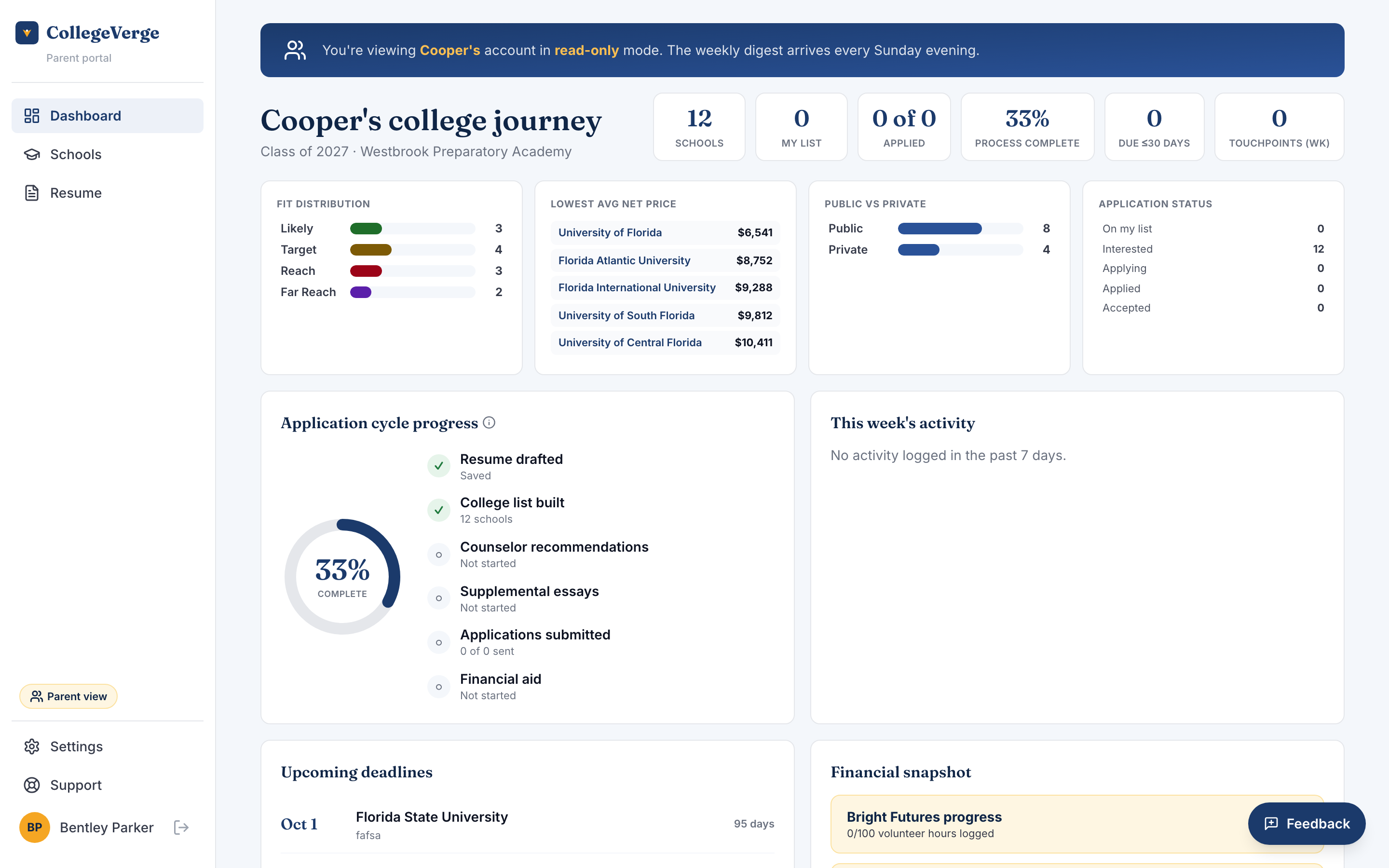
A row of summary chips counts the schools on the list, the apply list, applications sent, the overall process percentage, deadlines due within 30 days, and touchpoints logged this week. Four panels sit below them:
- Fit distribution. How the list breaks down across Likely, Target, Reach, and Far reach. For what these categories mean, see Understanding fit.
- Lowest avg net price. The most affordable schools on the list, by estimated net price.
- Public vs private. The split between public and private schools.
- Application status. Where each school sits, from interested through applying, applied, and accepted.
The application cycle progress ring
A single ring estimates how far along the application cycle is, scored across six milestones. Each one is marked done, in progress, or not started, and the ring fills as they advance. Read it as a guide to momentum rather than an exact figure.
- Resume drafted. A summary or activities are saved.
- College list built. Schools are on the list.
- Counselor recommendations. Recommendation letters are logged for the schools your student is applying to.
- Supplemental essays. Supplemental essays are marked complete for those schools.
- Applications submitted. Applications are sent across the apply list.
- Financial aid. The FAFSA is marked submitted.
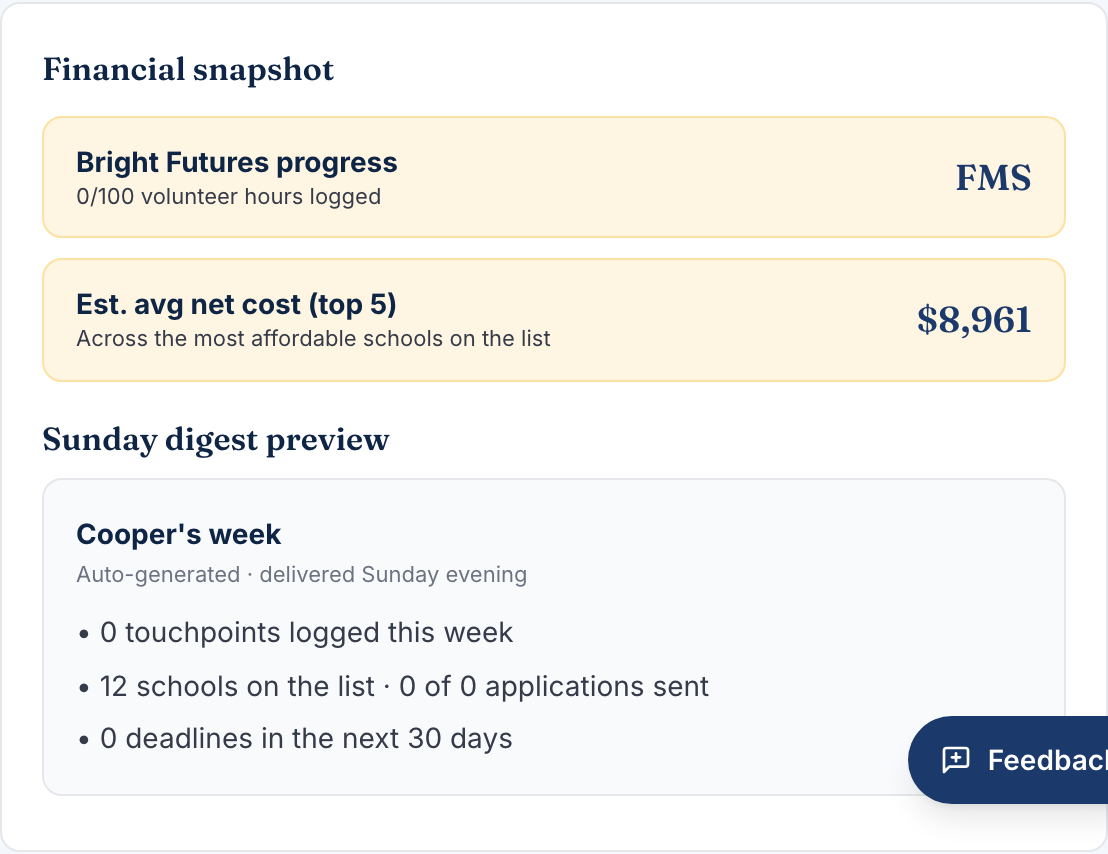
Alongside the ring, a panel shows this week's activity (the touchpoints your student logged in the last seven days), upcoming deadlines, a financial snapshot, and a preview of the Sunday digest.
The schools list
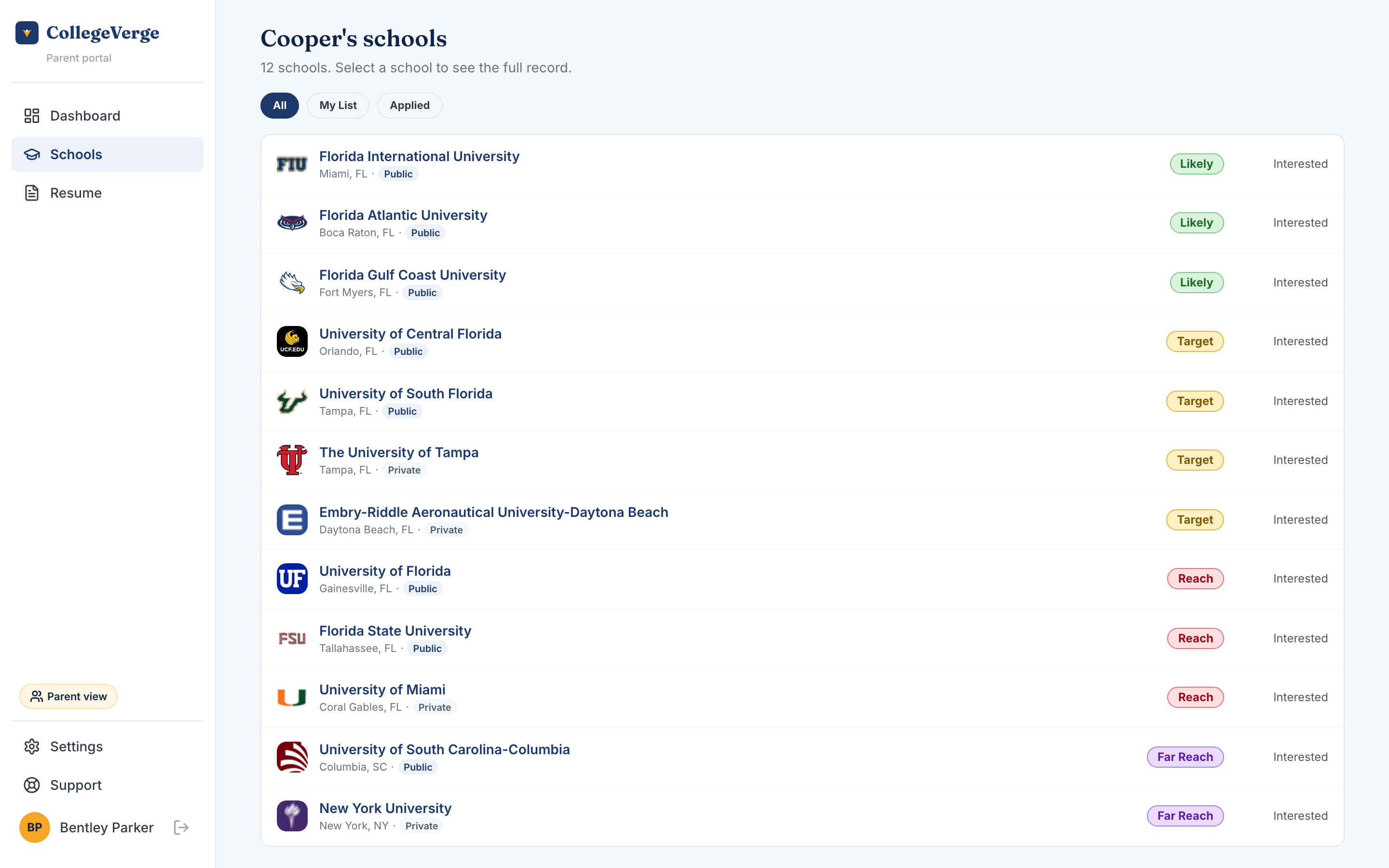
The Schools page lists every school your student is tracking, each with its fit badge, location, public or private marker, an Apply list tag where it applies, and its current status. Filter the list by All, My List, or Applied. Select any school to open its full read-only record.
A read-only college record
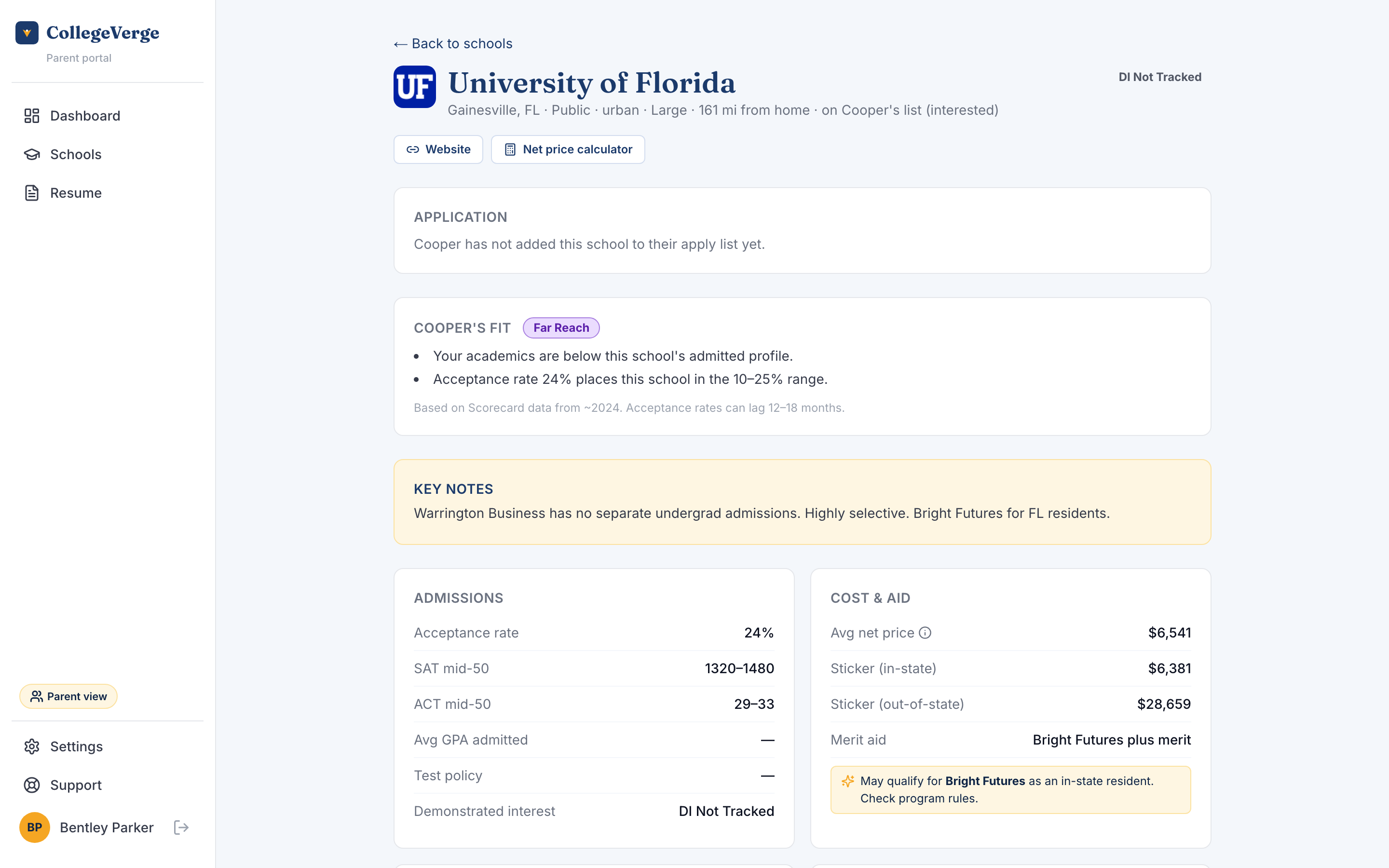
The college record mirrors what your student sees: the school's profile and selectivity, the fit badge and the reasons behind it, deadlines, the application checklist, any logged touchpoints, and, for athletes, coach contacts and the school's sponsored sports. Quick links open the admissions portal, the school's website, and its net price calculator in a new tab. Nothing here is editable.
The resume
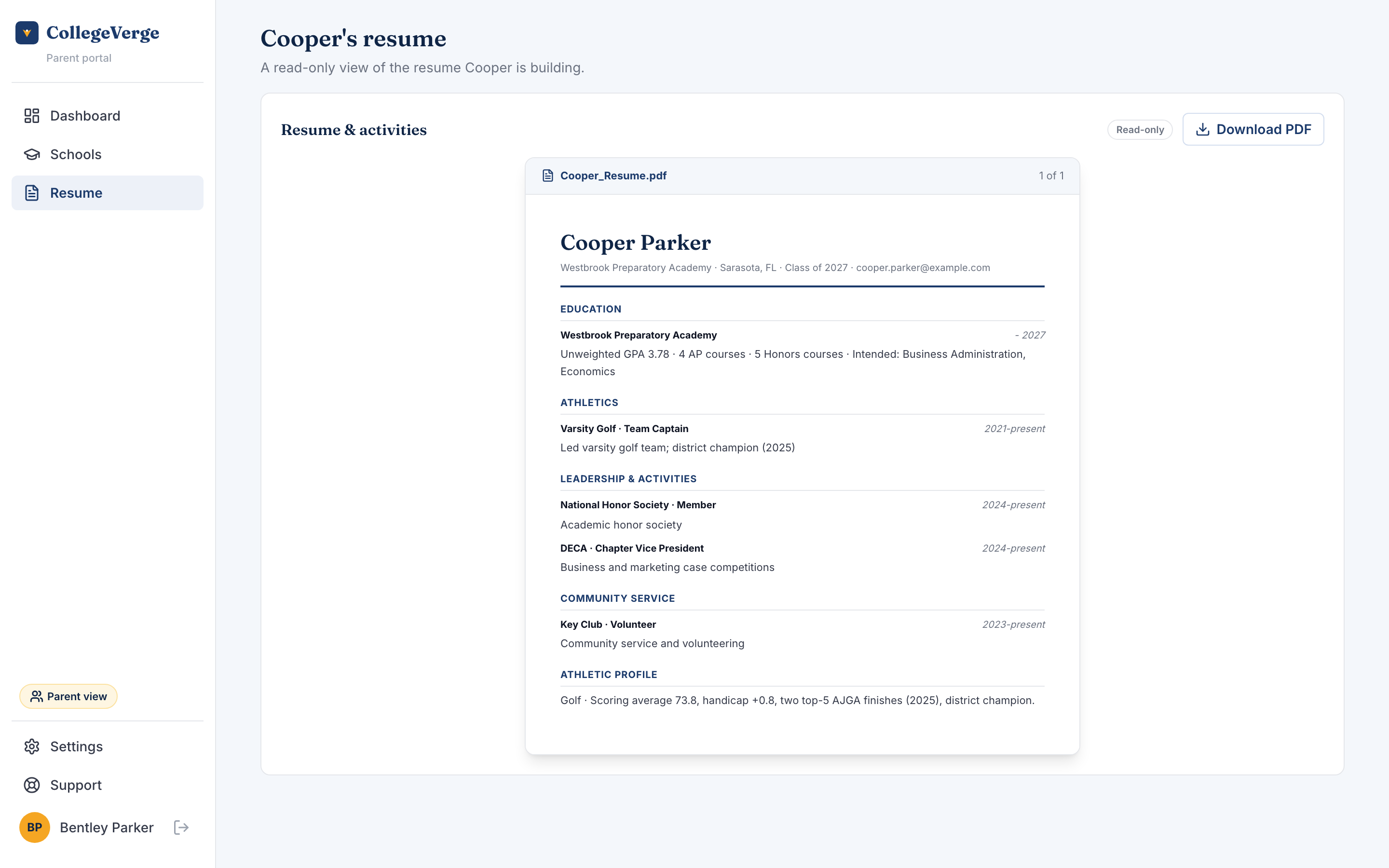
The Resume page shows the resume your student is building, formatted exactly as it appears in their package, with a clear read-only marker. When there is content to show, a Download PDF button lets you save a copy to share with a counselor or keep for your records.
The weekly digest
Every Sunday evening, CollegeVerge emails you a short digest of your student's week: touchpoints logged, schools added, decisions received, and deadlines coming up in the next two weeks. It is a quiet way to stay current without checking in daily. If you are linked to more than one student, each one gets its own section in the same email. You can preview the upcoming digest on your dashboard.
Settings and notifications
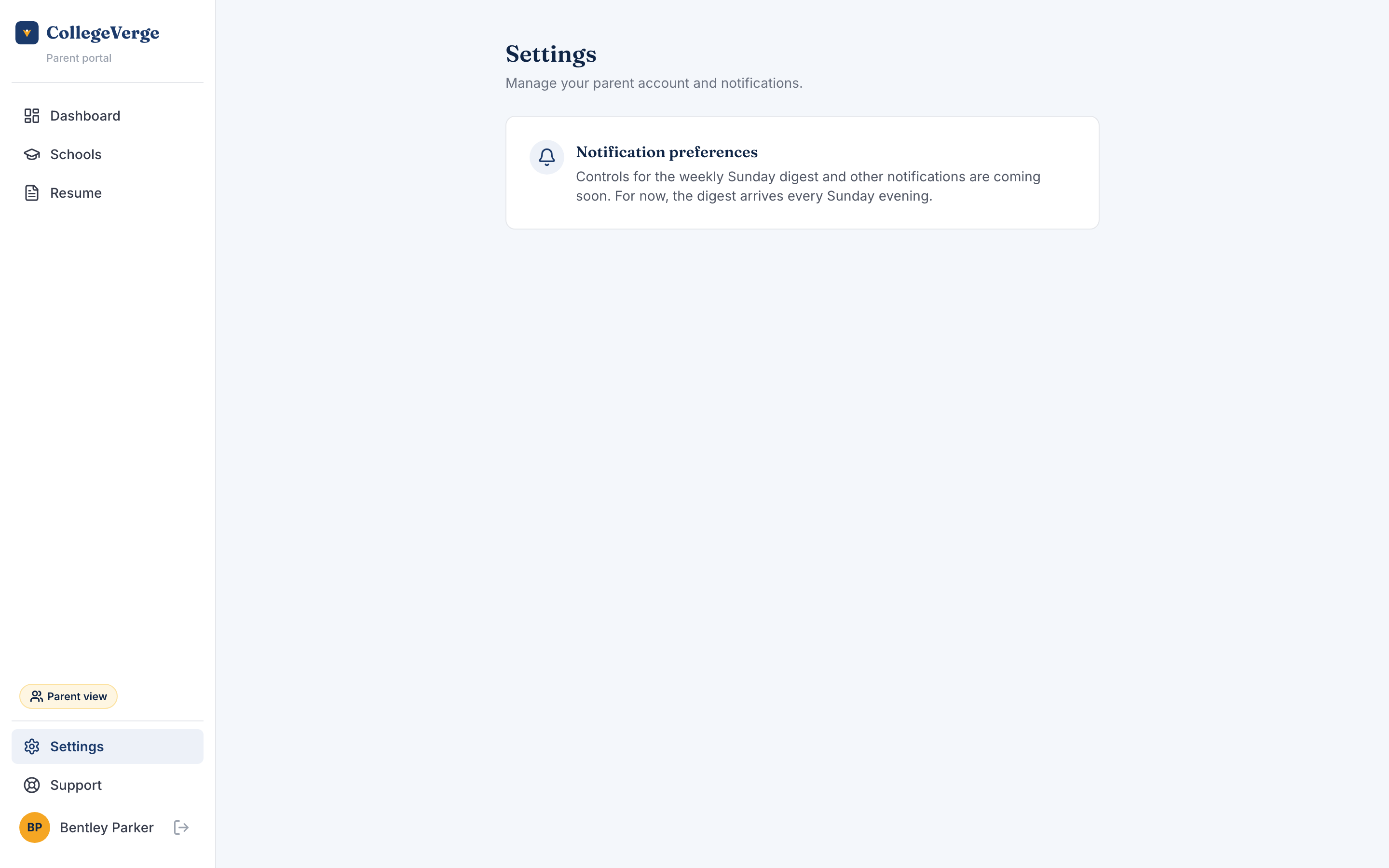
The Settings page is where you manage your parent account. Notification controls for the weekly digest are on the way; for now, the digest arrives every Sunday evening.
Approving an under-18 student
If your student is under 18, one action is yours alone, and it is the most important thing the portal asks of you. Until you approve, your student cannot email schools or coaches and cannot share their package. They can still build their profile, research schools, and draft everything; only the outbound steps stay paused.

When approval is needed, a highlighted block sits near the top of your dashboard explaining the request. Selecting Approve and give consent confirms that you are the student's parent or guardian and consents to their use of CollegeVerge. The outbound steps unlock right away, and the block disappears once approval is recorded. Students who are 18 or older never need this step, so the block does not appear for them.
For students under 18, contacting schools and sharing a package are real-world actions on a minor's behalf, so we hold them until a parent or guardian signs off. This is a one-time approval; everything else in the portal works the moment you are linked.
Next
- See how the fit badges in the portal are built in Understanding fit.
- Your student invites and manages you from Settings & billing.
- New to CollegeVerge? Start with Getting started.